


Wifi Manager
4.421.00 Reviews
App Specs
- Version
- 1.0.6
- Updated On
- License
- Free
- Downloads
- 100,000+
- Developer
- alatheertech.com
- Categories
- Tools
- Platform
- Android
Screenshots
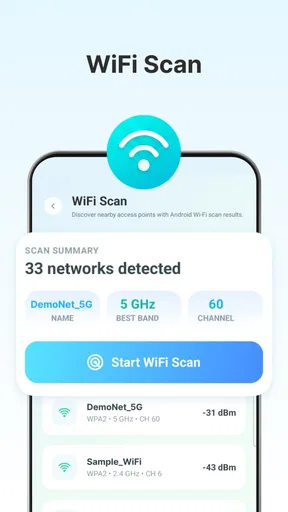
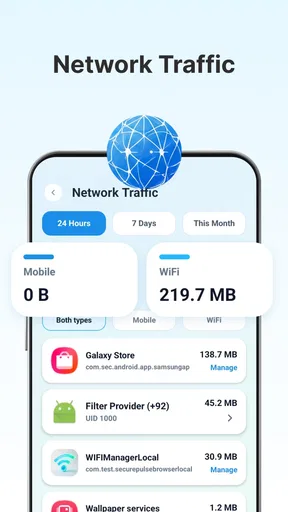
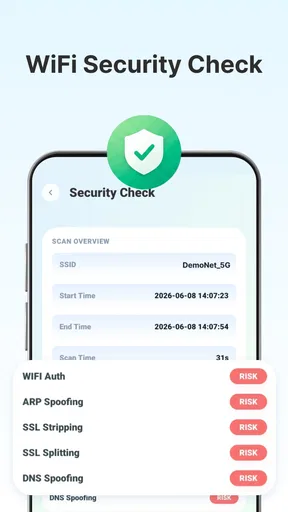
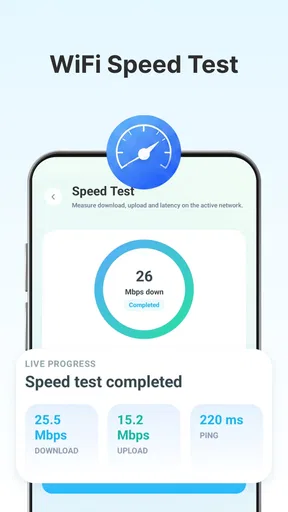
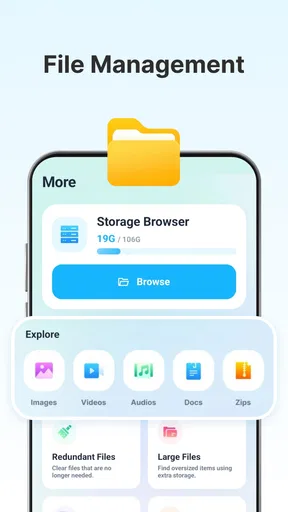
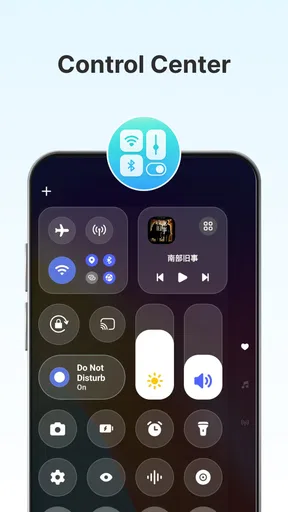
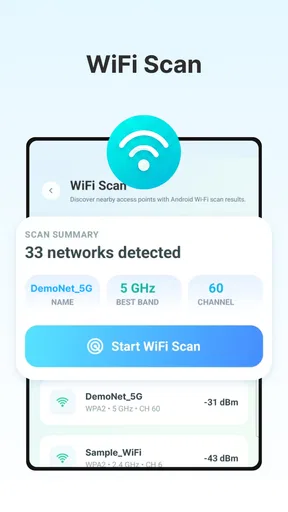
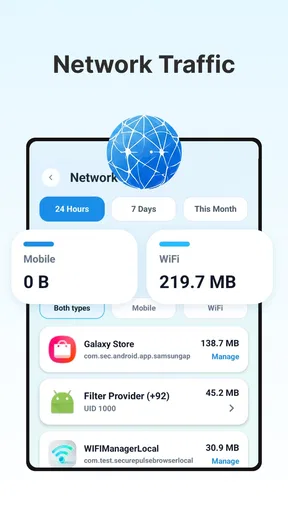
 Analysis by AppCompare
When a Wi‑Fi connection starts behaving strangely, I usually want two things immediately: a clear view of the network around me and a simple way to keep related files under control. That is the space where Wifi Manager tries to be useful. It is a free tools app from alatheertech.com that combines Wi‑Fi management, network analysis, and file organization instead of focusing on only one of those jobs.
After spending time with it, I see the app as most useful for people who regularly move between home, work, school, shared offices, or public networks and want a more deliberate routine than opening the phone’s standard Wi‑Fi panel. It is not a replacement for a router dashboard, a full network scanner, or a dedicated file manager. Its value comes from bringing two everyday tasks into one place and encouraging a repeatable way of checking what is happening.
The app is listed for Everyone, costs nothing to use, and has reached over one hundred thousand installs. Its average rating is 4.5, which suggests that many users find the general approach worthwhile, although a rating alone cannot tell me whether it fits a particular phone or network. The current release is version 1.0.6, and it runs on Android 7.0 or later.
How I use it as a daily Wi‑Fi routine
My preferred starting point is simple. I open the app before changing anything and first look at the network information it presents. That baseline matters because it prevents a common mistake: changing settings before deciding whether the problem is the phone, the access point, or the surrounding wireless environment.
For example, if a connection feels slow in one room, I would not immediately forget the network or restart the phone. I would use the analysis side to inspect the available wireless situation, then compare what I see with the place where the problem occurs. Moving a few steps and checking again can be more informative than repeatedly tapping reconnect. The app is especially helpful here as a visual checkpoint, not as a magic repair button.
A realistic use case is a shared apartment where several devices appear to work well near the router but struggle in a bedroom. I can check the network from both locations, note whether the surrounding wireless activity looks different, and then decide whether the likely answer is repositioning the router, reducing interference, or contacting the internet provider. The important habit is recording the situation before making changes.
I also like separating connection work from file work. If I have downloaded screenshots, exported documents, or received files while troubleshooting, I can deal with that clutter afterward rather than mixing it into the network diagnosis. That makes the app feel less like a collection of unrelated buttons and more like a small utility workspace for phone maintenance.
Worth Reading Before You Choose

EA SPORTS FC Mobile 26 Is a Bigger Football Game, but It Takes Time

Flipboard Shows What News Apps Must Do Beyond the Feed

Switching to Android Auto Means Rethinking Your Driving Routine

Google Calendar Makes a Crowded Week Easier to Manage

Ludo King Makes the Most of the Minutes Between Plans

Baby Panda World Brings Quick Play to Modern Phones, but Its Game Library Feels Busy
The strongest habit is to use the app for observation first and action second. A network tool becomes much less useful when every screen is treated as an instruction to change something. I would check the current connection, identify the practical problem, make one sensible adjustment outside the app if necessary, and then check again. This creates a repeatable before-and-after workflow.
What the network analysis is good for
The analysis function is most valuable when I need context that the ordinary Android Wi‑Fi screen does not present comfortably. The system panel is fine for joining a known network, but it can feel limited when I am comparing nearby connections or trying to understand why a familiar connection has become unreliable. A dedicated view gives me a reason to pause and inspect rather than guess.
That does not mean every result should be interpreted as a technical diagnosis. Wireless conditions change as people move around, neighboring routers transmit, and the phone changes position. I treat what I see as a snapshot. If a problem appears only at certain times, I repeat the check during those times instead of trusting one visit.
This approach is useful for choosing where to work in a home or office. If one desk repeatedly gives me a steadier connection, the app can support that decision by making the comparison more intentional. It cannot physically improve coverage, and it cannot compensate for a failing router, but it can help me avoid blaming the wrong device.
There is also a practical benefit for less technical users. Rather than asking someone to explain every router term, I can use the app as a common reference point while describing the issue. That makes conversations with a family member, coworker, or support technician more concrete. I still need to explain the symptoms, but I am less dependent on vague phrases such as “the internet feels bad.”
Keeping files organized without losing the troubleshooting trail
The file organization side is easy to overlook because the Wi‑Fi feature is the obvious reason to install the app. In practice, it can help when network checks generate a lot of temporary material. Screenshots of connection details, downloaded manuals, router photographs, and exported notes can quickly become difficult to find in a general downloads folder.
My useful pattern is to organize files immediately after a troubleshooting session, while I still remember why they matter. A screenshot showing a problem should not sit beside unrelated images for weeks. I would group relevant items by the situation, remove obvious duplicates, and keep only the files that might help with a later comparison or support request.
This is not just tidiness. A clean folder makes repeat testing more reliable. If I check the same location several times, clearly named or consistently grouped files help me distinguish a new observation from an old one. That is one of the less obvious ways the two halves of the app can work together: network analysis produces useful evidence, while file organization keeps that evidence usable.
I would not use this feature as my only document system if I already depend on a sophisticated file manager, cloud workflow, or work-specific archive. The advantage is convenience inside a focused utility, not deep file-management power. For quick cleanup and keeping troubleshooting material together, it is practical; for complex sorting across many storage locations, a dedicated alternative may be better.
Settings and habits that make the app more useful
Experienced use begins with checking how the app fits into the phone rather than assuming its default presentation is perfect. I look for the most readable way to view network information, especially when I am checking it in a hurry. A tool that is technically informative but visually difficult to scan loses much of its value during a real connection problem.
I also make a point of checking the app after Android updates or major changes to my network. A phone update can alter how system-level network information is displayed or accessed, while a new router configuration can change what appears in the surrounding environment. The app’s compatibility with Android 7.0 and later makes it accessible to a broad range of devices, but older phones may still present information differently from newer models.
Another setting-related habit is to avoid treating every available network as one I should join. Analysis and connection are separate decisions. If I am in a café, hotel, or shared building, I use the app to understand the local situation, but I still consider whether the network is appropriate for sensitive activity. The app can help me inspect connectivity; it does not turn an untrusted network into a private one.
For home use, I prefer checking the phone’s connection alongside the router’s own controls when the issue continues. The app is convenient on the handset, but router settings remain the proper place for tasks such as changing the wireless password, controlling connected devices, or adjusting access rules. Keeping those roles separate prevents disappointment and avoids unnecessary changes in the wrong interface.
File organization also benefits from a small rule: do not postpone every cleanup until storage is nearly full. I find it easier to process a few recent files after each network session than to face a crowded folder later. This is particularly useful when troubleshooting produces repeated screenshots that look almost identical. Keeping the clearest examples and discarding the rest makes future comparisons faster.
Shortcuts for common situations
My fastest pattern for a weak connection is a three-stage check. First, I inspect the current network and note the location and time. Second, I compare it with another nearby position or another known connection. Third, I decide whether the problem follows the phone, the room, or the network. This prevents me from confusing a coverage problem with an account or device problem.
When helping someone else, I use a similar sequence but keep the language simple. I ask them to show the network view, then I check whether the same behavior appears on another device. If only one phone struggles, the app gives me a useful starting point, but I do not assume the wireless network is at fault. If several devices show the same issue in the same place, the router or coverage becomes a more likely direction for further investigation.
A second efficient pattern is to capture only meaningful evidence. I do not save every screen. I keep one example from a normal location and one from the problem location, then organize those files together. This creates a compact record that is easier to share with support or compare after moving the router.
For people who frequently travel, I would use the app before relying on a newly encountered network for important tasks. The point is not to collect a long history of every hotspot, but to make a quick inspection part of the arrival routine. Combine that with sensible security behavior, and the app becomes a useful awareness tool rather than a button for automatic joining.
There is also a good maintenance routine for families. Once a week, check the home connection from the rooms where people actually use their phones, then clean up the screenshots or downloaded files created during the check. This takes less effort than reacting only when streaming, calls, or schoolwork fail. The app supports that habit because analysis and organization sit close together.
Where the app reaches its limits
The first limitation is scope. A Wi‑Fi manager on a phone can show useful information about the phone’s wireless environment, but it is not the same as professional network-monitoring equipment. I would not choose it for advanced diagnostics across an entire business, detailed long-term reporting, or configuration of managed infrastructure.
The second limitation is that analysis cannot fix physical or service problems. If the router is poorly placed, the broadband line is failing, or the building blocks the signal, no app screen can solve that directly. The app can help me gather clues and verify whether a change helped, but the actual remedy may involve moving hardware, contacting a provider, or replacing equipment.
I also would not install it solely to perform a task that the Android system panel already handles comfortably. If I only need to connect to my home network, view the saved connection, or turn Wi‑Fi on and off, the built-in controls are quicker and already familiar. The dedicated app earns its place when I want analysis plus a more organized troubleshooting workflow.
File organization has its own trade-off. A focused utility can be faster than opening several unrelated tools, but users with demanding storage workflows may want stronger search, tagging, synchronization, or batch operations from a specialist file manager. I see this app’s file side as a companion to network maintenance, not a complete replacement for every file task.
Privacy-conscious users should also keep their expectations realistic. Inspecting wireless information is not the same as making a connection anonymous or secure. I would still use encrypted websites, avoid entering sensitive information on questionable networks, and follow the security guidance of the place providing access. The app can support better decisions, but responsibility remains with the user and the network configuration.
Who should install it and who should skip it
I think the app is a good fit for Android users who often troubleshoot home Wi‑Fi, compare connection quality between rooms, help relatives with network problems, or want a convenient place to keep related screenshots and downloads. It is also appealing if you prefer a practical utility over a collection of separate tools.
It makes less sense for someone who rarely changes networks and is satisfied with the standard Android controls. It is also not the right main tool for network administrators, people seeking a complete router-control platform, or users who need a highly specialized document-management system. In those cases, dedicated alternatives will offer greater depth.
The free price lowers the barrier to trying it, and the Everyone age classification makes it suitable for a broad household audience. Still, I would judge it by whether its combined workflow saves time on your phone. Installing another utility only helps if it replaces repeated searching through system menus or scattered file folders.
Compared with the usual alternatives, its distinction is the combination rather than a single standout technical function. Android’s built-in Wi‑Fi settings are faster for basic connection control. A router manufacturer’s app is usually more appropriate for changing network configuration. A specialist file manager is likely stronger for serious storage work. Wifi Manager sits between those options, offering a handy bridge for people whose real problem is everyday maintenance rather than deep administration.
My verdict after building a repeatable workflow
I would recommend Wifi Manager to a friend who wants a straightforward way to inspect wireless conditions and keep troubleshooting material organized. The app is most convincing when used with a method: check before changing anything, compare locations, separate phone problems from router problems, and clean up the files created during the process.
Its current version, 1.0.6, gives the product a clear, focused identity rather than trying to become every kind of network tool at once. That focus is helpful, but it also explains why advanced users may eventually need router software or specialist utilities. I appreciate tools more when their boundaries are clear, and this one works best when I treat it as an informed assistant rather than an automatic repair service.
The most valuable result is not a single scan. It is the habit the app encourages: observe the connection, make one change, check the result, and preserve only the evidence that matters. For a home user, student, traveler, or family helper, that can turn frustrating Wi‑Fi problems into manageable comparisons.
My final view is positive but specific. Choose it for practical Wi‑Fi checks paired with light file organization, not for full router administration or professional network analysis. If that matches the way you use your Android phone, the free download is easy to justify. If your needs stop at joining a network, or go far beyond phone-level inspection, the built-in settings or a more specialized alternative will be the better choice.
Pros
- Quickly scans nearby networks and displays essential Wi‑Fi details.
- Helps identify crowded channels for better router placement and performance.
- Simple interface makes network information easy to understand.
- Useful signal-strength readings help locate dead zones at home or work.
- Supports troubleshooting without requiring advanced networking knowledge.
Cons
- Some features may depend on Android permissions or location access.
- Results can vary between devices because of different Wi‑Fi hardware.
- Advanced tools may be limited compared with dedicated network analyzers.
- Ads or upgrade prompts may interrupt the experience in the free version.
- It cannot improve a weak connection when the router or ISP is the problem.
FAQs for Wifi Manager
What is WiFi Manager and what can I use it for?
WiFi Manager is an Android utility designed to help you view, organize, and manage nearby wireless networks from one place. Depending on the version and device, it may provide details such as network names, signal strength, connection status, and saved networks. It can be useful when troubleshooting weak connections, choosing the strongest available network, or quickly accessing Wi-Fi settings without navigating through several system menus.
Does WiFi Manager require special permissions to work?
Yes, WiFi Manager may request permissions related to nearby devices, location, or network access. Android often requires location permission for Wi-Fi scanning because nearby network information can potentially reveal a device’s location. The exact permissions depend on your Android version and the app’s features. Before accepting, review the permission explanation and deny anything that seems unnecessary for the functions you plan to use.
Can WiFi Manager improve my internet speed or Wi-Fi signal?
WiFi Manager cannot increase the actual speed provided by your internet plan or physically strengthen a router’s signal. However, it can help you identify connection problems by showing signal strength, nearby networks, or possible channel congestion. Using this information, you may choose a better network, move closer to the router, restart equipment, or adjust router settings to achieve a more stable connection.
Is WiFi Manager safe to use on public or private networks?
The app is generally intended to manage wireless connections rather than provide complete network security. You should still be careful when connecting to public Wi-Fi, especially networks without a password, because other users may attempt to intercept information. Avoid entering banking or sensitive account details on unknown networks, keep Android updated, and check the app’s developer, reviews, and requested permissions before installing it.
Does WiFi Manager work on every Android phone and tablet?
Compatibility can vary depending on your Android version, device manufacturer, and the wireless features supported by the hardware. Some newer Android releases restrict Wi-Fi scanning or network-management actions for privacy and security reasons, so certain tools may be limited or redirect you to the system settings. Check the app’s Google Play listing for supported versions and test its features after installation.


